Using the App — Teacher
Teachers decide. Amal measures each child sub-skill by sub-skill, proposes what support to try next, and tracks whether it is working, but every recommendation is yours to accept, adjust, or reject.
This page has two parts. The teacher experience (v3) is what every teacher sees today: the menu, landing on the measuring page, «المختبر» (the lab) and «إجراء التقييم» (running the assessment). The classic teacher pages follow it; they are the whole experience when the v3 flag is off, and some of them still open from v3 (the student file, training, the activation steps).
Which experience a teacher gets is one flag. GET /api/auth/me returns features.teacherV3,
set per organisation by TEACHER_V3_ORGS. Since Release 1 (2026-10-01) it is "*", so every
teacher in every organisation is on v3; "" puts everyone back on the classic pages, and that
way back exists during Release 1 only. The /api/teacher/* routes answer the same either way.
See the changelog.
The teacher experience (v3)
Signing in and the menu
When a teacher opens the platform they land on the «إجراء التقييم» page of their current class: the last class they opened, otherwise their first class. Once the platform has saved that class to the account, the same landing applies on another device. A teacher with no class assigned yet lands on «صفوفي» (my classes).
The side menu has four rows:
| Row | What it opens |
|---|---|
| «إجراء التقييم» | Running the class’s assessment for a window (below). |
| «المختبر» | Everything students need to sign in: the class link, login codes, home passwords (below). |
| «ملف تعلّم الطالب» | The student list and the student profile. Until the new student file ships in the next release, these open as described in Open a student profile. |
| «الإعدادات» | Three sections in order: «الملف الشخصي» (profile, with the form of address), «تفضيلات المنصة» (notifications and appearance) and «مساعدة ودعم» (the help centre), with signing out at the bottom. |
The class pill. Every page carries a «الصف: …» button at the top. It switches class and keeps you on the same page, so «إجراء التقييم» for one class becomes «إجراء التقييم» for the next.
The other v3 pages. «لوحة الصف» (the class board), «كل الاحتياجات» (all needs), «التقييمات» (assessments), «التعليم المتمايز» (differentiated learning) and «التقارير» (reports) have no menu row. They open from links: «التقييمات», for example, from the «النتائج» link on «إجراء التقييم» and from «ملف تعلّم الطالب». Old links and bookmarks to the classic pages open their v3 page on their own. Details in the teacher guide «تجربة المعلّمة الجديدة».
The lab («المختبر»)
One page for everything students need to sign in. It opens from the «المختبر» menu row and from the class row menu in «صفوفي».
How to:
- Share the class link. Under «رابط دخول الصفّ», «نسخ رابط دخول الطلاب» copies the link students open; when it expires shows below it. A class with no link yet offers «إنشاء رابط الصفّ» instead.
- Renew the link when needed. «تجديد الرابط» creates a new link and stops the old one at once, after a confirmation. Students’ codes do not change.
- Read the login codes. «رموز دخول الطلاب» is a table of each student («الطالب»), their two-digit code («رمز الدخول») and username («اسم المستخدم»), with a search by name or username. A student opens the class link, then signs in with their two-digit code.
- Give one student a new code. «رمز جديد» next to the student, then «إنشاء رمز جديد» in the confirmation, ends their current code at once and closes their open sessions. The new code shows here one time only.
- Print the cards. «طباعة البطاقات» downloads the class’s sign-in cards, one sheet per student.
- Issue home passwords. The collapsed «كلمات مرور المنزل» section at the bottom holds «إصدار كلمات مرور المنزل». It gives every student of the class a new password for signing in from home with their username, and closes their open sessions. The passwords show here one time only, so print or copy them before leaving the page.
Run the assessment («إجراء التقييم»)
One page to run a class’s assessment for a window: who still has which measure left, with the digital measure and the oral measures together. It replaces the earlier «قياس القراءة» page, and old links to that page open this one.
The header. The class pill, then the window tabs. Under the tabs sits the row that opens and closes the assessment for the class: «فتح تقييم», then «فتح التقييم», and «إغلاق».
The status card («حالة التقييم»).
- «N من M مكتملون كاملًا» counts the children who finished every measure of this window, digital and oral together. «ينقص بحسب المقياس» then lists what is left per measure. These are counts, never a share.
- A small «النتائج» link opens the window’s results in «التقييمات».
- «خطة اليوم» (today’s plan) gives short sentences on what is left, for example «7 طلاب ينقصهم نص القراءة ≈ 21 د». The minutes are a rough guide: about 3 per child for the text and 2 per word list. For the digital measure it reads «N لم يكملوا التقييم الرقمي» with «أرسل رابط الصف من صفحة المختبر» (send the class link from the lab). With nothing left it reads «اكتمل التقييم لكل الصف».
- While the assessment is closed, the card keeps only the complete count, «النتائج» and the marks legend «دلالة العلامات».
The matrix. One row per child and one column per measure: «رقمي» (digital), «نص» (a text read aloud), «كلمات مألوفة» (familiar words) and «كلمات غير حقيقية» (pseudowords), then «المتبقّي» (what is left). Every cell carries a mark and its word:
| Mark | Word | Meaning |
|---|---|---|
| ✓ | «تم» | done |
| ◐ | «بدأ» | started |
| ◐ | «توقّف» | stopped |
| ○ | «لم يبدأ» | not started |
| ↺ | «أُعيد» | restarted, waiting for the new attempt |
| «—» | «غير متاح» | not available |
«أُعيد ×n» is added when a measure was restarted before. Above the matrix: the filter «الكل / ينقصه شيء / مكتمل» (all, something left, complete) and a search by name. On a phone each child is a card. While the assessment is open and no window is open on the page, the page refreshes itself every 20 seconds, so digital progress shows without a reload.
The cell dialog. Pressing a cell opens a window named after the measure and the child.
- An oral measure not yet done opens its tool directly: reading a text aloud (pick the text, then read; «طباعة ورقة الطالب» downloads the sheet the child reads from), or marking a word list.
- A done measure shows its result («ك/د» and «الدقّة» for the text, «N من N» for a word list) and its time («آخر تحديث: …»).
- The digital cell shows its status and a link to «المختبر», where the class link is.
- When the assessment is not open, the dialog reads «التقييم غير مفتوح» and the tools stay closed.
- If the dialog is closed while a reading is running, the platform asks first: «متابعة القراءة» or «إنهاء دون حفظ».
«جلسة قياس» (a measuring session). The «ابدأ جلسة قياس» button («ابدئي جلسة قياس» in the feminine form of address) sits on the status card while the assessment is open and at least one child has an oral measure left. It opens a full screen for measuring one child at a time.
- «قائمة الانتظار» (the queue) lists the children, most left first, then by name. The header shows the child’s name, the position «n من m», «إعادة» and «خروج» (exit).
- After a save, «التالي: …» names the next step and the session moves on after 3 seconds. If the same child has another oral measure left, the session goes there first. «إلغاء» keeps you on the same child.
- «تخطٍّ» (skip) moves the child to the end of the queue.
- When the queue is done: «اكتملت القياسات الشفهية لكل الصف».
«إعادة» (restart) with a reason. A measure can be restarted while the assessment is open: an oral measure that is done or in progress, from its dialog («إعادة»), and a digital measure that is done, in progress or stopped («إعادة التقييم الرقمي»).
- Pick the reason, which is required: «الطالب لم يكن مستعدًا» (the child was not ready), «انقطاع تقني» (a technical interruption), «بدأ بالخطأ» (started by mistake) or «سبب آخر» (another reason). There is no free text.
- Press «تأكيد الإعادة».
- For an oral measure the tool opens for a new attempt at once. For the digital measure, «سيبدأ الطالب تقييمًا جديدًا عند دخوله القادم»: the child starts a new assessment at their next sign-in, and a sitting still open is ended.
«تبقى المحاولة السابقة في السجل»: the earlier attempt stays in the record but no longer counts.
The cell reads «أُعيد» until the new attempt is done. Until then the skill reads from the other
valid evidence, and with none it reads as not yet assessed for this window. If another teacher
of the class restarted it first, «أُعيد هذا من قبل» shows. Each restart writes a
measurement_void row to the audit log.
What moved off this page. «تسجيل نتيجة جاهزة» (recording an accuracy result already read on paper) is now in «ملف تعلّم الطالب», in the fluency section. «جلسة تقييم جديدة للطالب» (re-measuring after a while) stays in «ملف تعلّم الطالب», on the «خطة الدعم الحالية» card.
The classic teacher pages
This is the whole teacher experience when features.teacherV3 is false. With v3 on, the
student profile, today’s training, training levels and the activation steps («تفعيل خطة») still
open as described here, with two differences. Every step that runs on the class’s measure page
(«قياس القراءة») runs from «إجراء التقييم» instead, in the cell dialog; re-measuring after a while
(«جلسة تقييم جديدة للطالب») stays on the student profile, on the «خطة الدعم الحالية» card. And there
is no Sessions page: its links open «التعليم المتمايز», where «تعيين التدريب» opens the same send
window.
Pick your class
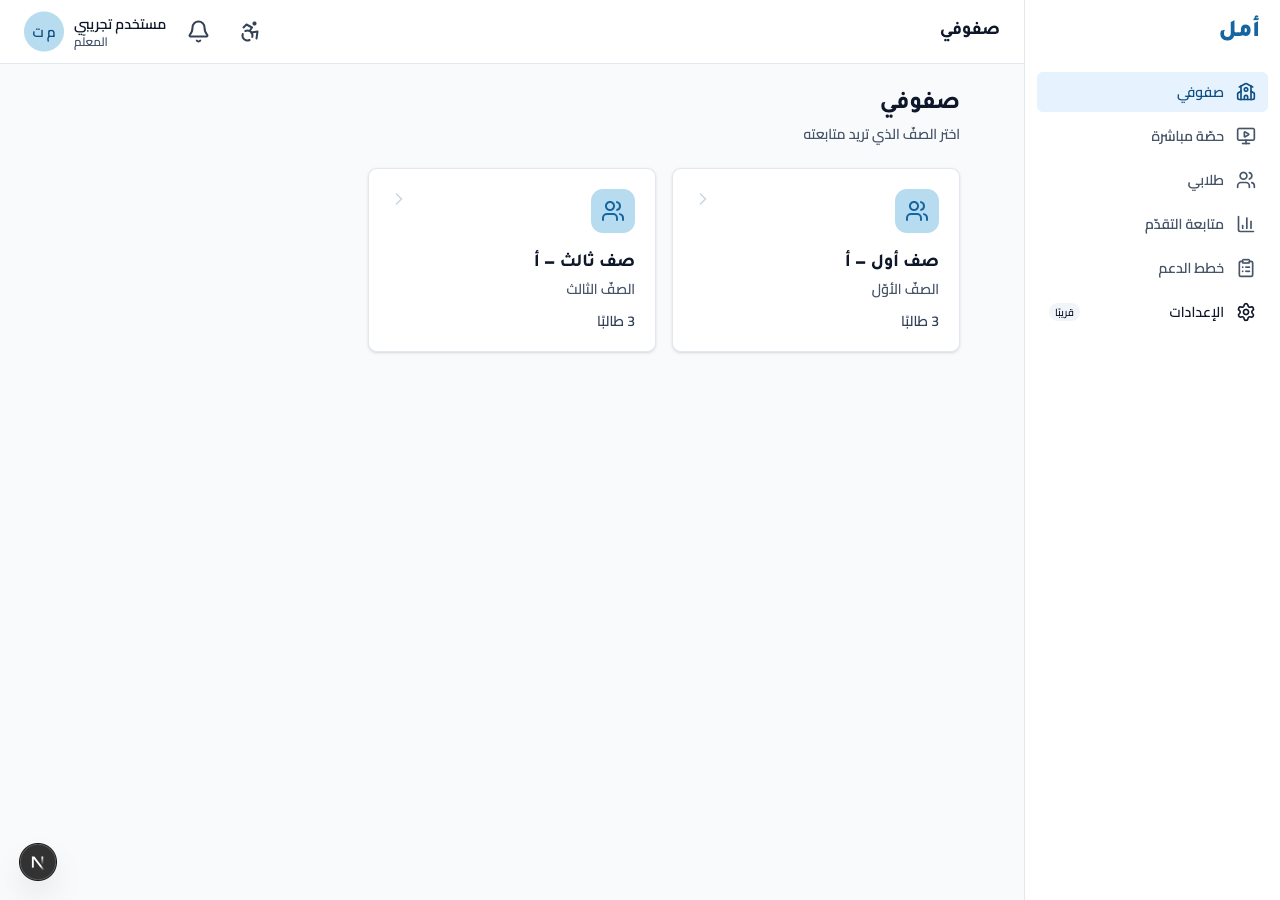
You may teach more than one class, so Amal opens on a class picker. Each card shows the class name and its student count.
How to:
- Review your class cards; each shows the class and how many students are in it.
- Click a class card to open its dashboard.
Read the class dashboard
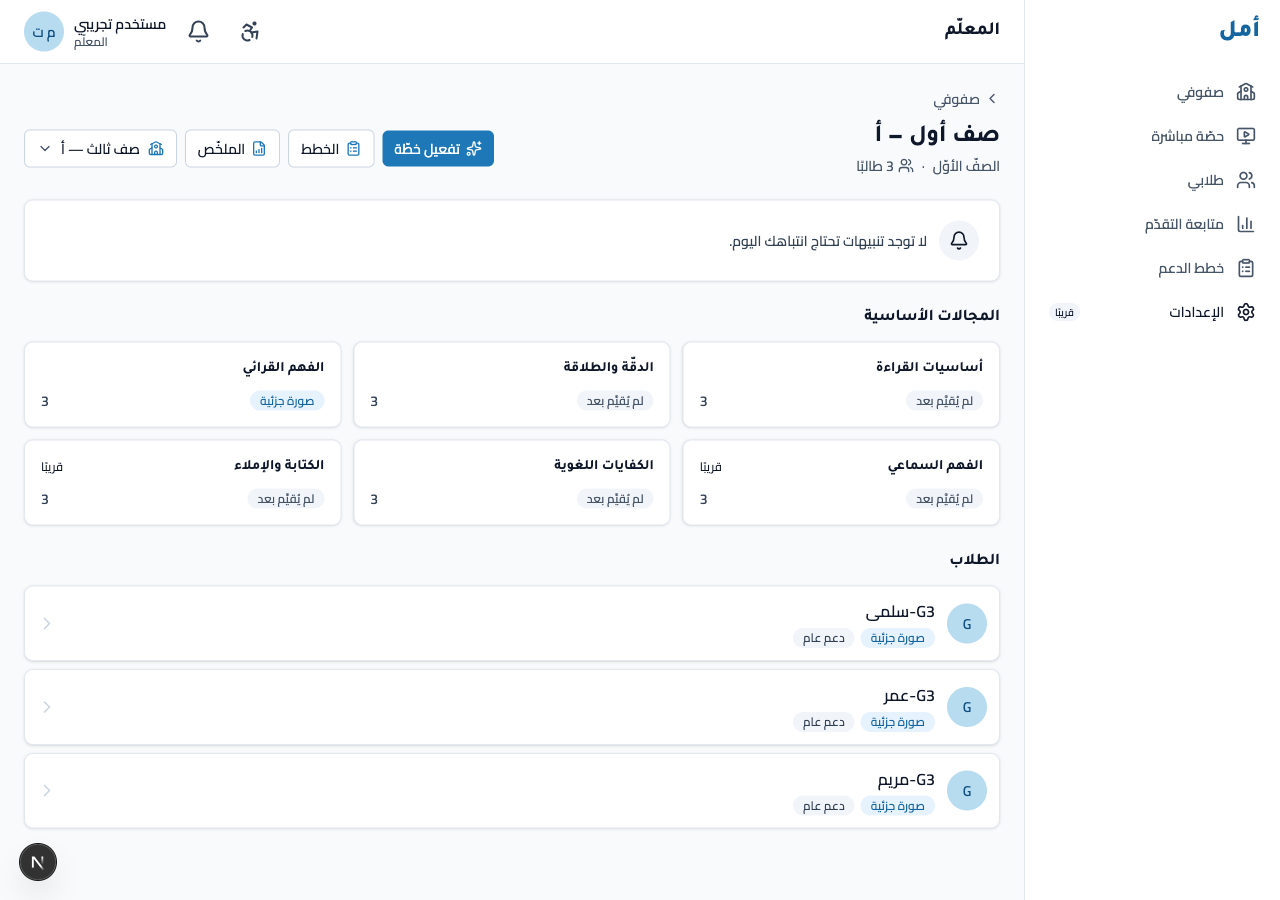
The class dashboard is your at-a-glance picture: macro-domain status across the class, with everything rolled up at the status level (Meets / Approaching / Below / Not assessed), never a single overall percentage.
How to:
- Scan the macro-domain grid to see where the class stands per domain.
- Use the breadcrumb at the top to move between the dashboard, summary, plans, and activation.
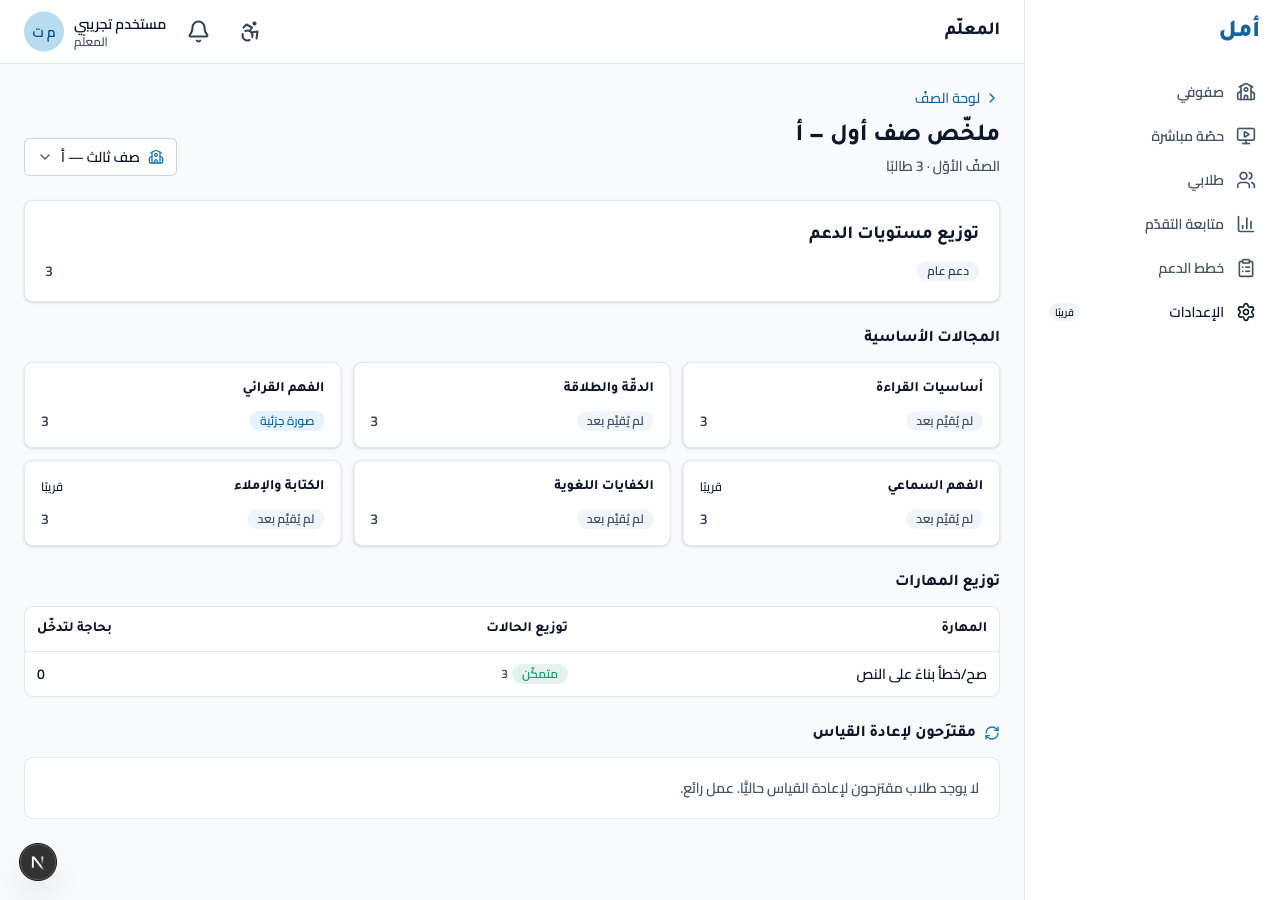
- Open the class summary for the scaffold-tier and skill-distribution view.
See all your students
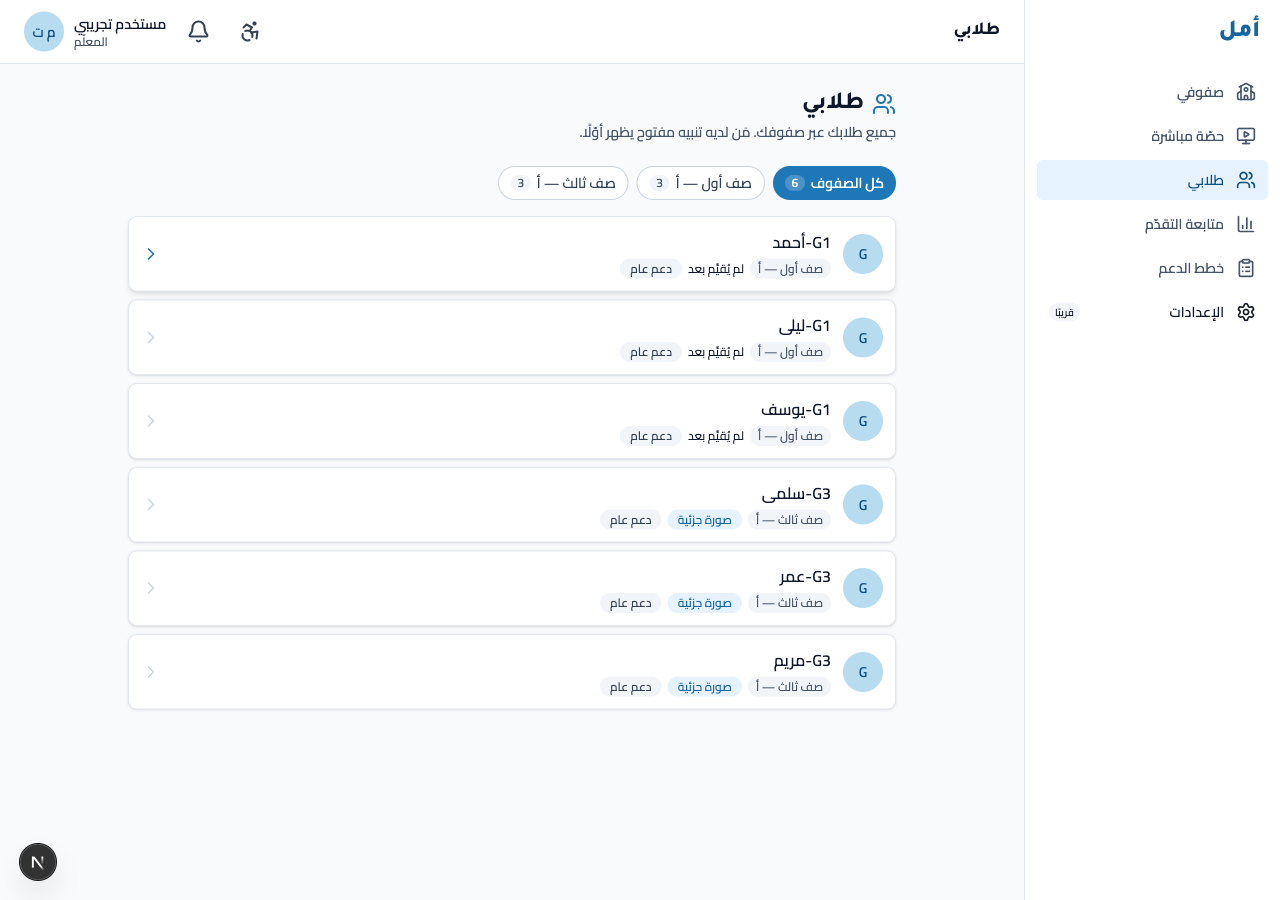
The students list shows everyone you teach. A class filter narrows the list to a single class, and each row links to that student’s profile.
How to:
- Use the class filter to narrow the list to one class.
- Click a student row to open their full profile.
Open a student profile
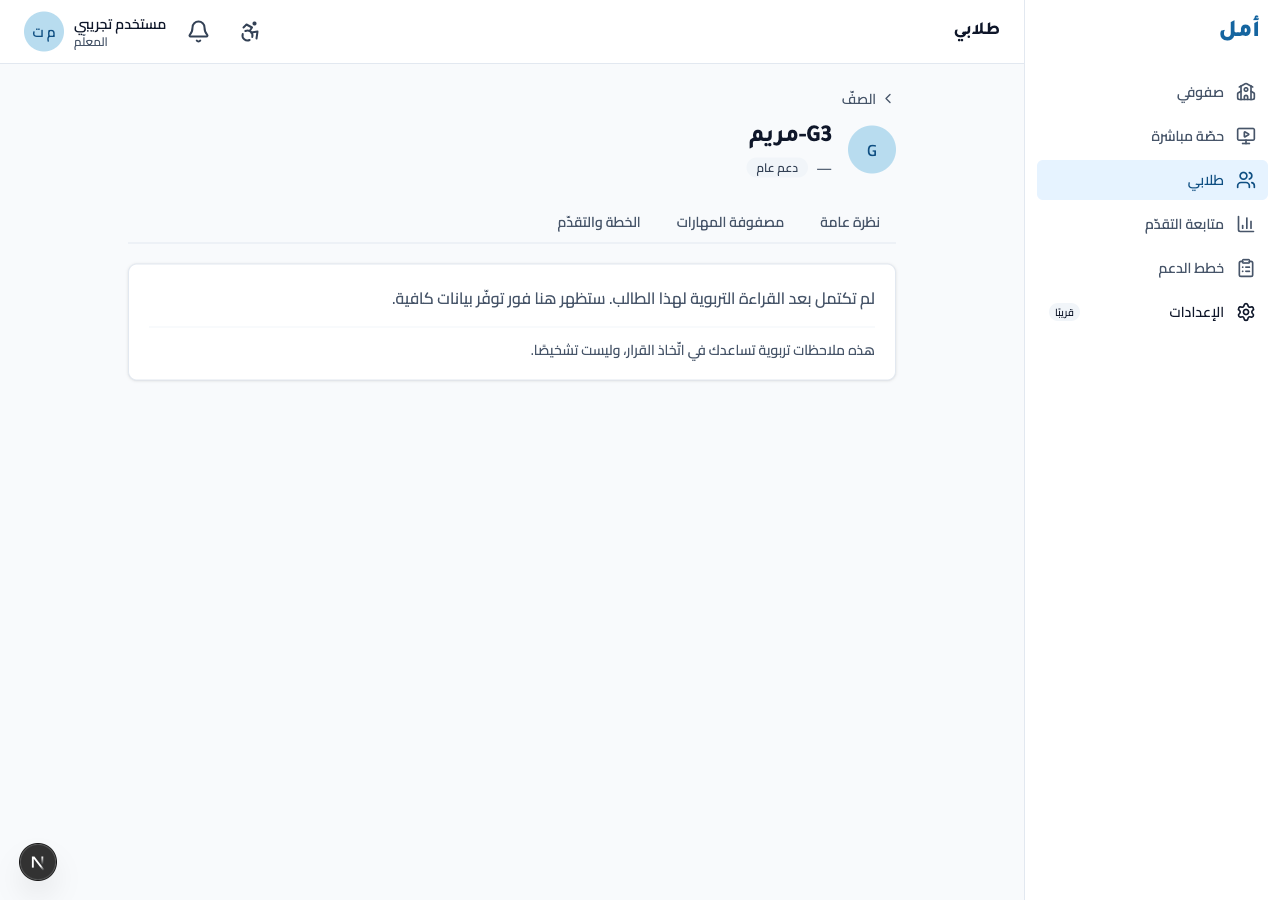
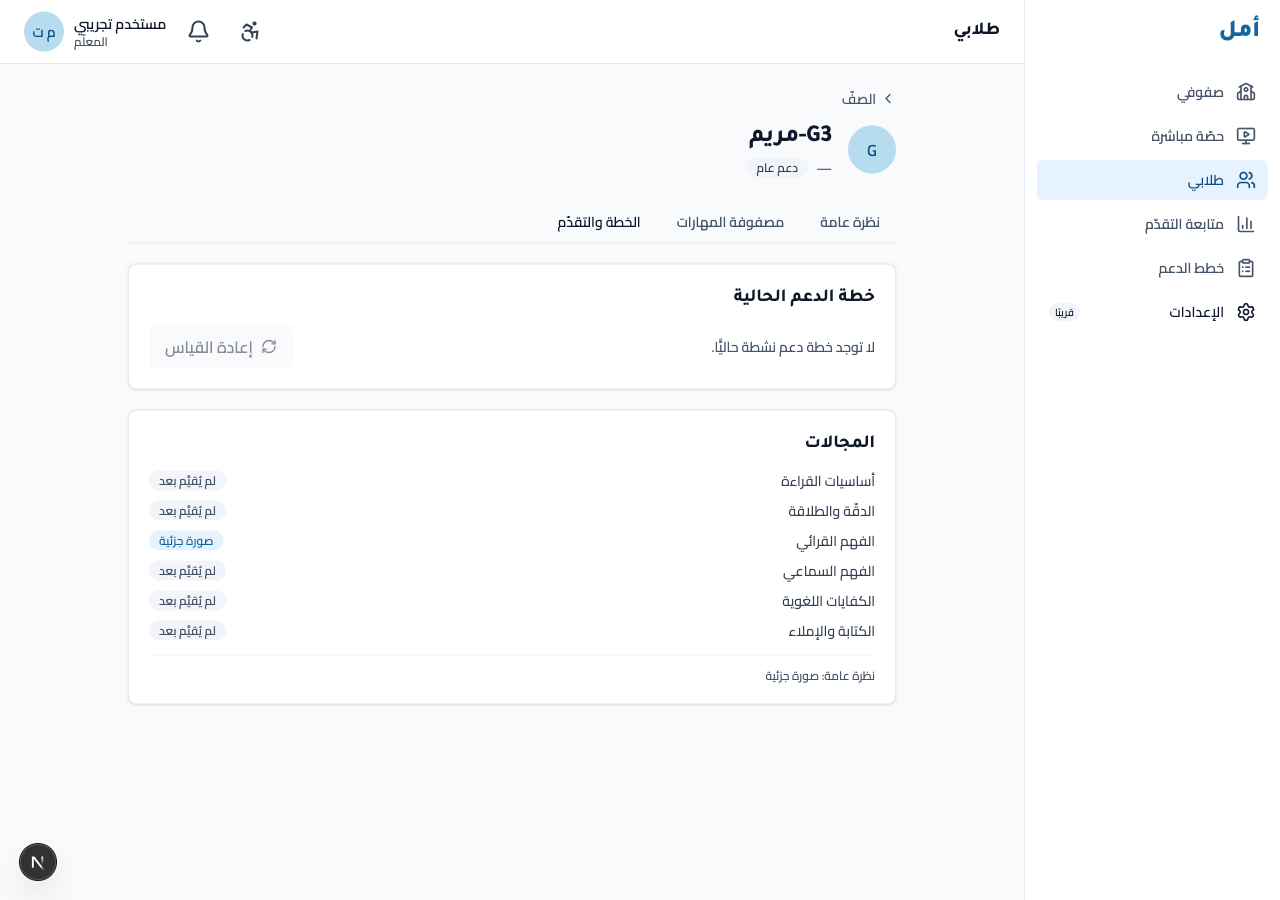
A student profile gathers everything about one child: an overview, their support plan and its progress, and a re-diagnostic option. The profile always carries the reminder that a profile is a teaching aid, not a clinical diagnosis.
How to:
- Read the overview tab for the child’s current picture.
- Open the plan & progress tab to see the active support plan and how it is tracking.
- Use re-diagnostic when the child is due for re-measurement (it stays disabled until the child is eligible).
- The Training card says whether the child’s training is open now and until when («التدريب مفتوح حتى HH:MM» / «التدريب غير مفتوح الآن.»). Press «تعيين التدريب» to open it for this child, for a window you pick (see Open today’s training below); when it cannot open, the dialog says why in plain words (for example, the deeper check comes first). Below it, the child’s own answer to «كيف كان التدريب؟» day by day (easy / just right / hard), in their own words and never as a score.
- The «فحص أعمق للأساسيات» card appears when the system suggests a deeper check, with the reason in plain words and the steps it walks. The system suggests and you decide: «الموافقة وفتح جلسة الفحص», or «عدم الاعتماد» with a reason from the list. Once approved, only «عدم الاعتماد» is offered while the check is opening; approve comes back if that earlier approval stopped before the sitting opened. When there is no question to serve you read «لا توجد أسئلة مناسبة الآن — يبقى الاقتراح قائمًا.» and the approve button stays; when another approval is opening the check at the same moment you read «يجري فتح الفحص الآن — حدّثي الصفحة بعد لحظة.». The card stays while the check is open for the child, even one opened in an earlier school year (it then reads «فحص أعمق مفتوح من عام دراسي سابق — ينهيه الطالب أوّلًا.»), because it holds the child’s training back; once complete it shows where the difficulty starts.
- During a fluency measurement, after marking a misread word press تفصيل next to it to pick the exact letter or diacritic the child missed; the selection shows on the result, on the measurement’s detail page and in the profile’s fluency column. (Observation only: it changes no number and no decision.) In Grade 2 at the start and in the middle of the year the reading rate is recorded for growth without a level, so the result card and the saved sitting show the accuracy level captioned «حسب دقّة القراءة», with «نتيجة أولية» while the table is provisional. «غير مُقيَّم» stays for groups that have no norm yet, such as Grade 1.
- When the child sat a measure screen, the skill reads as its measure under «المجالات والمهارات»: «فهم المقروء المباشر · ٤ من ٦ · متوسط، يحتاج دعمًا», then «مستوى التدريب في هذه المهارة: تعزيز» followed by «(حسب التدريب الحالي)» once training has set the child’s level in this skill, or «(حسب نتيجة التقييم)» (the level training will start from) before that, and «نتيجة أولية» while the scoring table is still the partner’s draft. The level replaces the skill-status word on that row; a measure that was cut short shows its reason («لم يكتمل — انتهى الوقت» …) and no level. The «فهم المقروء» domain may add a context-only line, «فهم المقروء: ٩ من ١٢ — متمكن ضمن المعيار (للاطّلاع فقط)». In the screen session’s detail, the button named after the measure (e.g. «أسئلة فهم المقروء المباشر») opens the question table (# · نمط السؤال · المهارة · صحيح / غير صحيح · إجابة الطالب), never the question text or the correct answer.
- «قائمة الكلمات» on the measure page is a timed read from paper. Print the child’s sheet with «طباعة ورقة الطالب» (words only, in the rows you see on screen, no numbers), press «بدء القراءة», and tap each misread word while the clock runs. When time is up, or after «إيقاف» if the child finished early, tap the last word reached (or «قرأ القائمة كاملة») and press «حساب النتيجة». «إعادة القراءة» starts a clean read and saves nothing. The result gives words read, errors, words correct per minute, accuracy and a level word decided by accuracy («حسب دقّة القراءة»), with «نتيجة أولية» while the table is provisional. A child who finishes early is rated on the actual seconds, and a level of «—» means no level applies to this list in this part of the year. Details in the teacher guide «قائمة الكلمات الموقوتة».
Activate a support plan
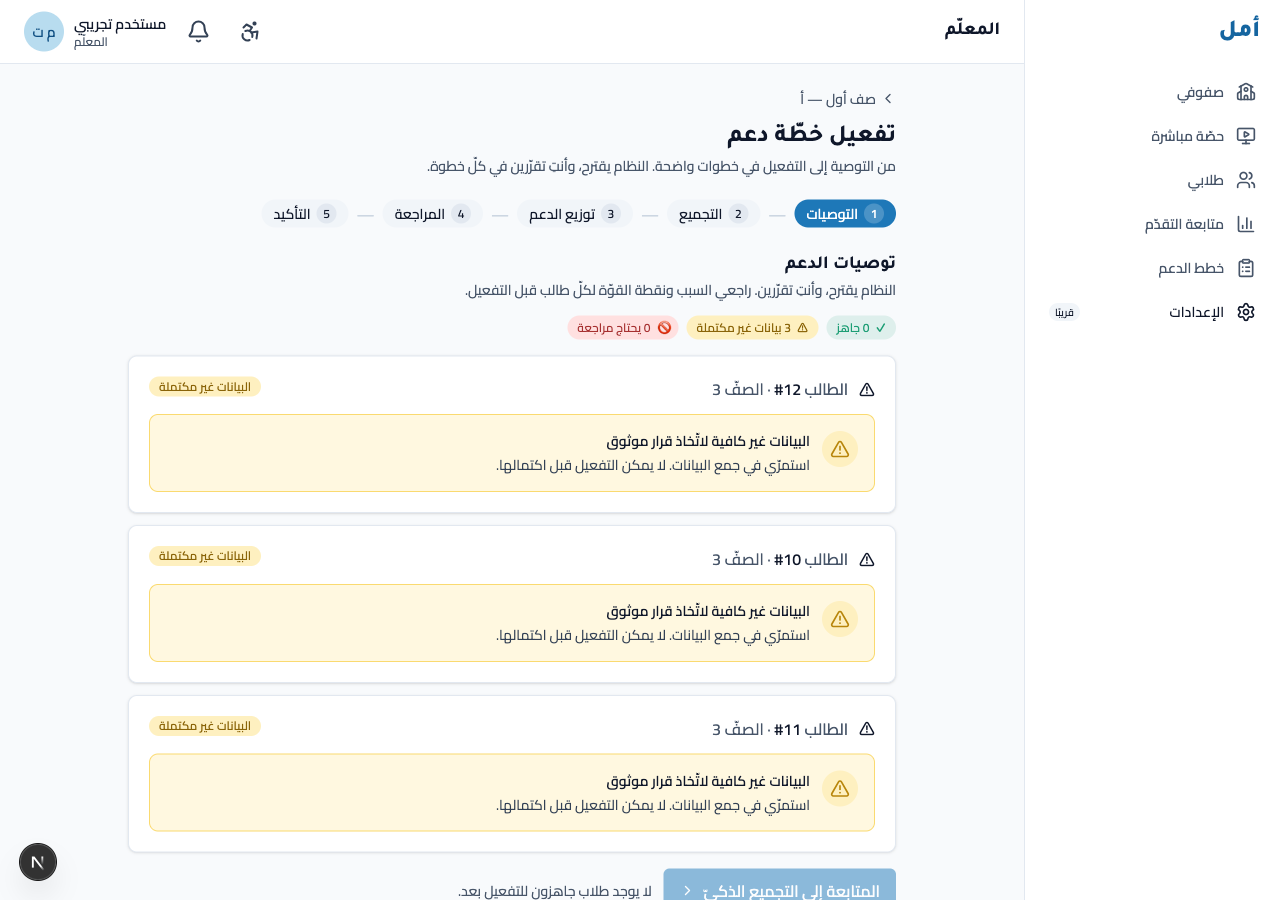
This is the heart of the teacher’s job. The activation wizard is a guided, multi-step flow that takes you from a recommendation to a committed plan. It is built so the system proposes and you decide at every step.
How to:
- Recommendations: review what Amal recommends for each student. Most students are recommended a support plan, but not everyone is: depending on the evidence, a student may instead be recommended a monitoring step (keep watching and re-check), a light support action (a small, focused bit of practice), or, when there isn’t enough evidence yet, a step to gather more data first. The screen makes clear which of these each student gets.
- Grouping: for the students who are getting a support plan, Amal previews which of them can be supported together (same plan focus, anchor skill, support level, and delivery mode).
- Scaffold distribution: check the spread of support levels across the group, so you can see who needs the most hands-on help and who is closer to working independently.
- Review: confirm each student; apply a per-student adjustment using an override code if you need to (the reason is always picked from a list; there are no free-text fields).
- Confirm: commit each student’s plan, monitoring step, or light support action.
The Continue button stays disabled for any student who does not yet have enough evidence to decide on. This is a deliberate safety guardrail (the “needs more data” case) and cannot be bypassed. Gather more evidence first, then return.
Open today’s training
Training no longer opens on its own after an assessment: you open it, for a time you choose. Each child trains on what they need, from their own latest assessment this school year, and finds it under «جلسة اليوم» only while your window is open. It does not show outside that window, and not at home by default: «هذه الحصّة» and «اليوم حتى نهاية الدوام» both end before the child goes home, and training stays open after school only if you pick a later time yourself.
How to:
- Start from the class board («فتح التدريب للصفّ»), the support-group header («فتح التدريب للمجموعة»), the child’s Training card («تعيين التدريب»), or Sessions → «+ جلسة جديدة» → «تدريب اليوم» (then the whole class, a support group, or children you pick). «جلسة من المكتبة» is still the one ready-made session for the class.
- Choose until when: this lesson (the default), today until the end of the school day, or until a time you enter.
- Confirm («سيُرسل التدريب إلى N طالبًا حتى HH:MM.»; it opens for each child who is ready) and press «فتح التدريب». The result lists who it could not open for, and why (already trained today, no finished assessment yet, the deeper check first, …). If training could not open for a child, the result shows it and you can resend without anything happening twice.
- «متابعة التدريب» (or the row under Sessions → Training) shows each child’s status (finished, training, not started, not opened) with counts only. «إنهاء التدريب الآن» closes it for everyone; their answers are kept. After an early close the list shows the time it actually ended, and a send that ended or was closed never reopens.
When the time ends mid-training, the child finishes the question on screen, then sees a calm «انتهى وقت التدريب الآن».
Follow training levels and training alerts
Each child trains every skill they need at a training level of their own: «تأسيس» (the most support), «تعزيز», «تطبيق», then «إثراء». The level starts from the child’s latest assessment this school year (or a deeper check completed after it) and then moves by itself from the child’s first tries answered alone, without a hint. It goes up after at least 7 correct of the last 8 over at least two training days, and back to more support after two groups of 8 in a row with 4 correct or fewer. The child is served questions of their level only and never sees the level.
How to:
- On the student page, read the «مستويات التدريب» card. Per skill it shows «مستوى التدريب في هذه المهارة: …», since when («منذ …»), where the level started («بدأ من نتيجة التقييم», «بدأ من نتائج التقييم السابق» or «بدأ من نتيجة الفحص الأعمق») and the last move («انتقل إلى مستوى «…» بعد إتقان المستوى السابق», «عاد إلى مستوى «…» ليحصل على دعم أكثر», or «أُعيد تحديد مستواه إلى «…» بعد تقييم أحدث»).
- Open «التنبيهات» for the class or support group. The «تنبيهات التدريب» section lists two kinds of suggestion, each with the counts it rests on. «مراجعة طريقة التدريب» appears after 3 training days at one level, all below 60 %, with the wording «لا يظهر تقدم كافٍ في هذه المهارة حتى الآن. يُفضّل مراجعة خطة الدعم أو طريقة التدريب.». «اقتراح مراجعة الدعم» appears after about three weeks at «تأسيس» without moving. Both also arrive as notifications («تنبيه تدريب» or «اقتراح مراجعة الدعم»), which open the child’s training levels.
- Press «اطّلعت» to record that you saw an alert; it then reads «تمّ الاطّلاع». It changes nothing else: the level stays, the alert stays until the child’s level changes, and the next step is your decision.
The numbers (8 answers, two days, three days, three weeks) are provisional settings the Amal team can change without a platform update. Details in the teacher guide «مستويات التدريب وتنبيهات التدريب».
Monitor progress and plans
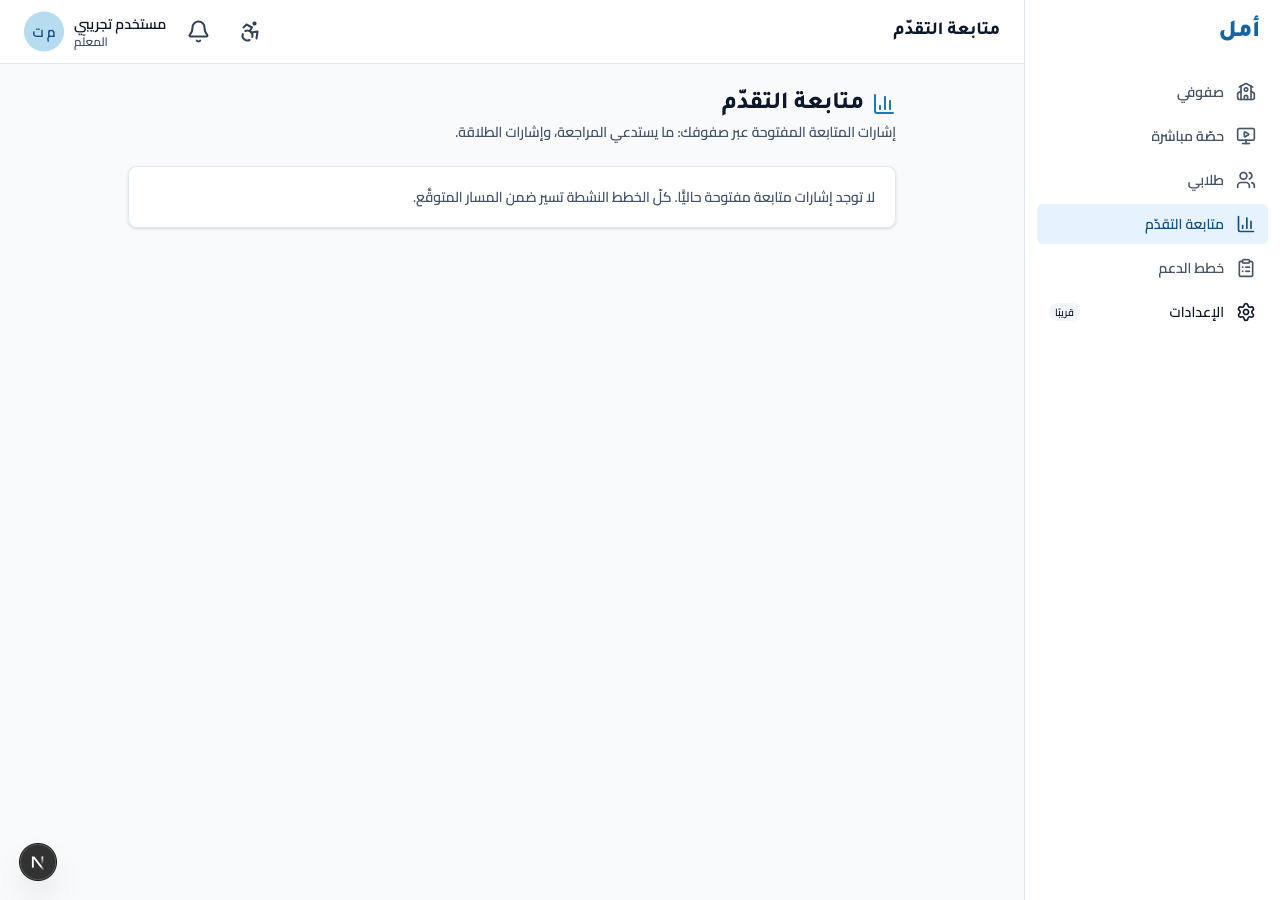
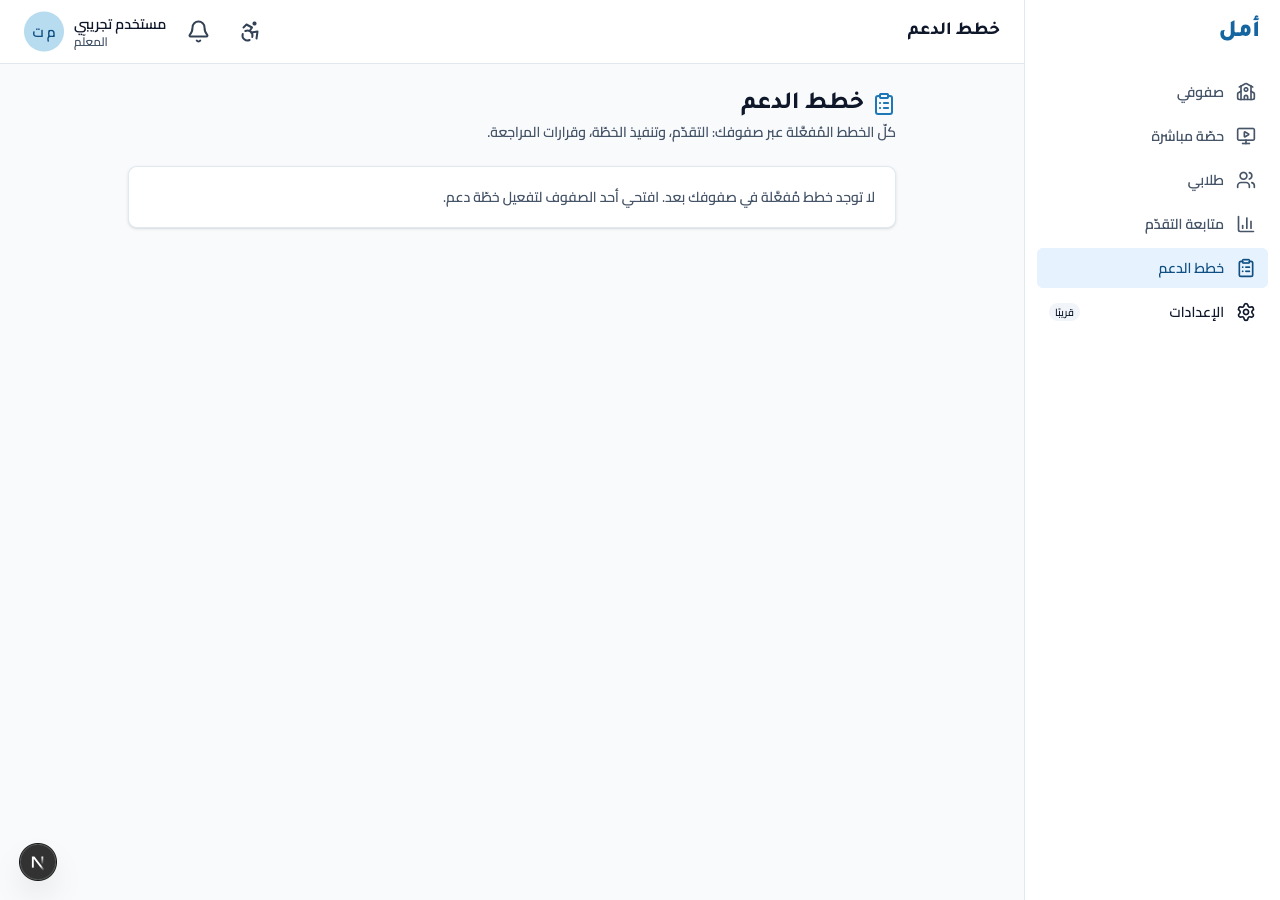
Once plans are running, the progress and plans screens are where you keep an eye on them. When there are no open signals, you see a calm empty state rather than noise.
How to:
- Open progress to see open monitoring signals and any alerts that need your attention.
- Open plans to see active support plans across your classes.
- Resolve an alert by reviewing it; the plan status is never auto-changed on your behalf.
- Watch for two delivery-aware states. A plan may be flagged off-track when its sessions haven’t been delivered for several teaching weeks in a row. And a progress result may show as not yet decidable: check delivery first when the plan wasn’t delivered as planned (too few sessions, or sessions too short). In both cases Amal holds off on any automatic next step so the result isn’t mistaken for the child’s response. Resume or complete the planned sessions first, then re-check. A plan in this state won’t be moved to a lighter or heavier level of support until delivery is back on track.
Run a synchronous lesson
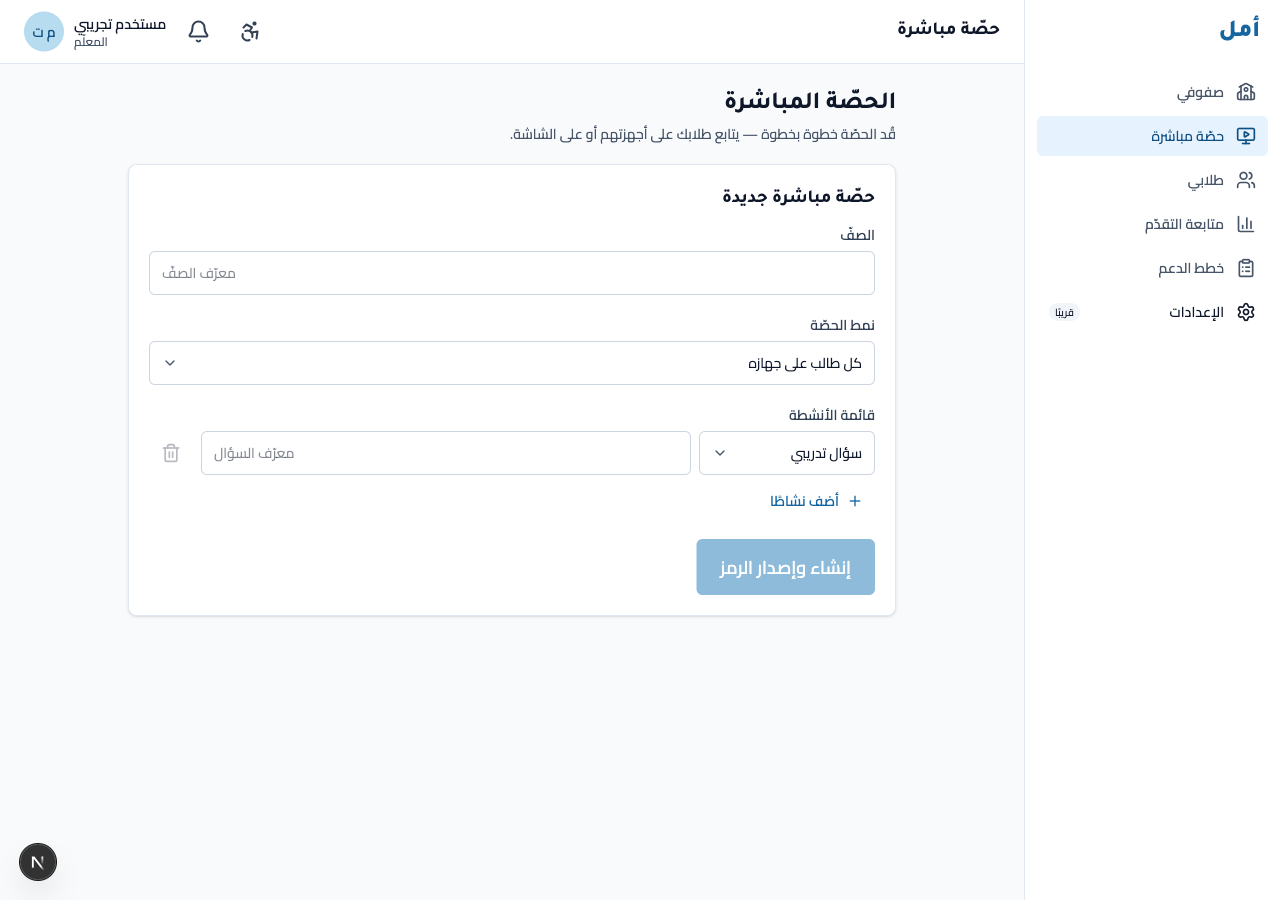
From the sync screen you build and launch a live, projector-led class session.
How to:
- Choose the class and the session mode, then add one or more activities.
- Click create and issue the code to generate a numeric join code for the class.
- Click open the projector screen to put the shared screen up, then start the session.
See the Projector guide for the shared-screen side.
Leaderboards (growth, not ranking)
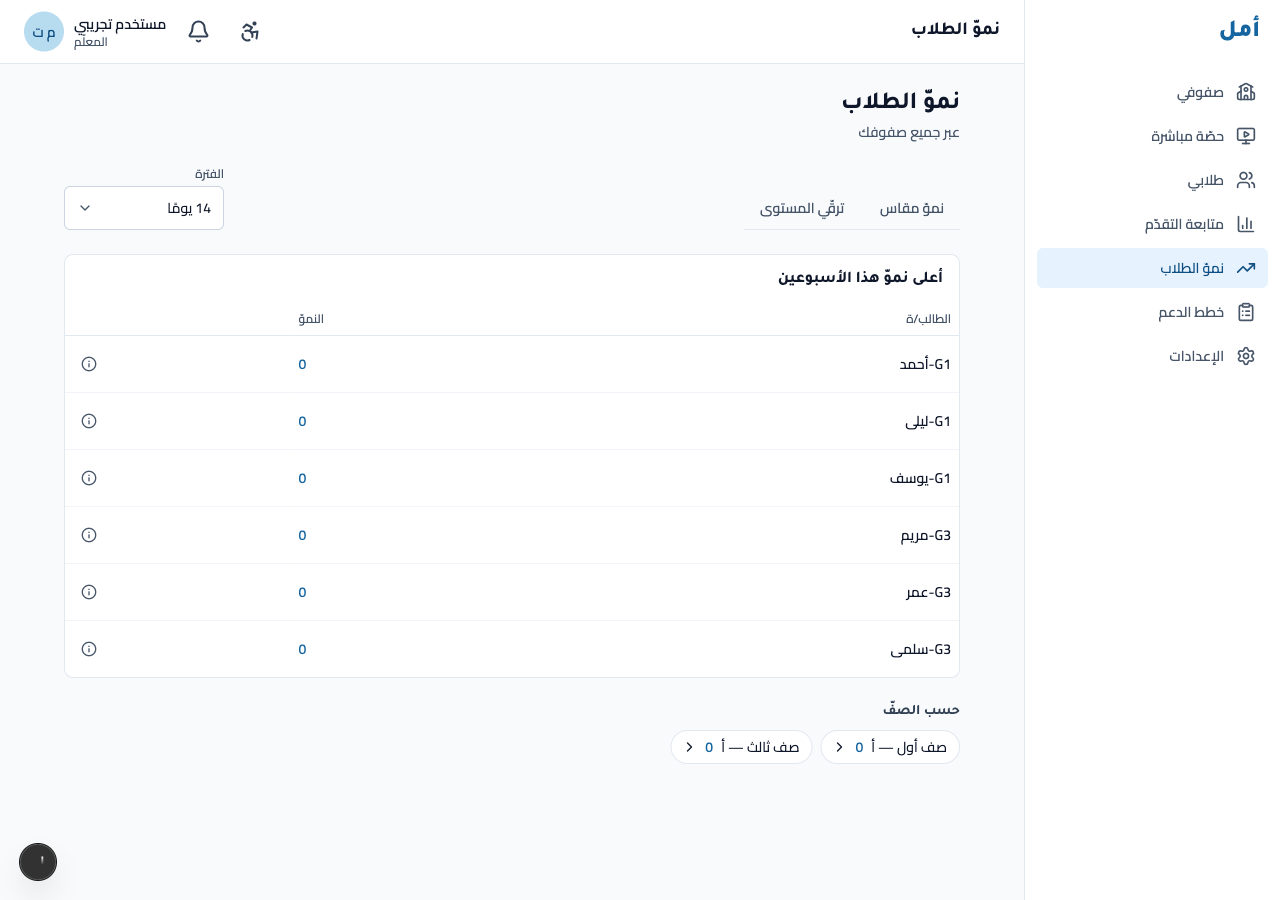
Teacher leaderboards celebrate measured growth, never a ranking of children. You can view them across your classes or for a single class.
How to:
- Switch between the measured growth and level progress views.
- Choose a period (7 / 14 / 30 days).
- Click a class chip to focus on a single class.
Settings
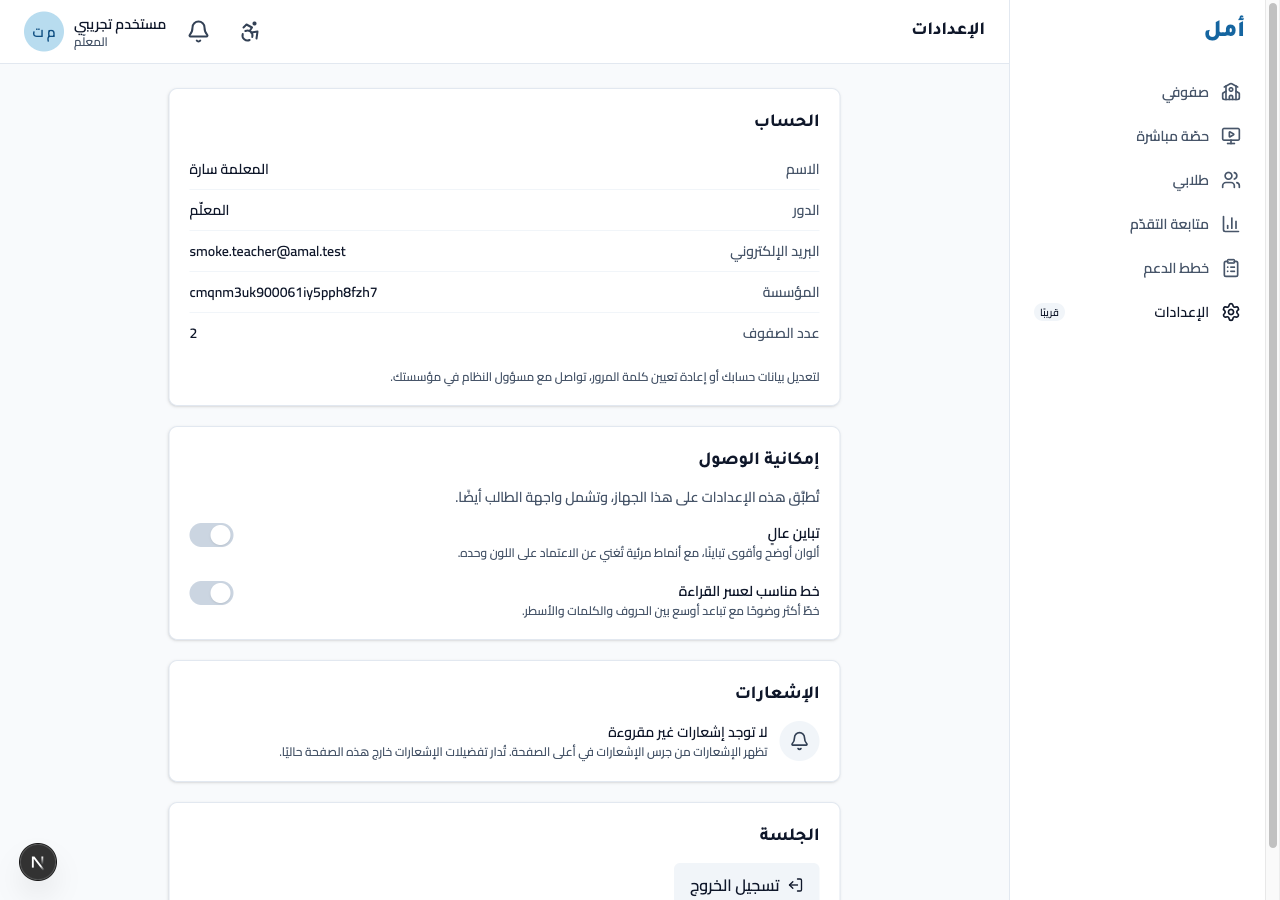
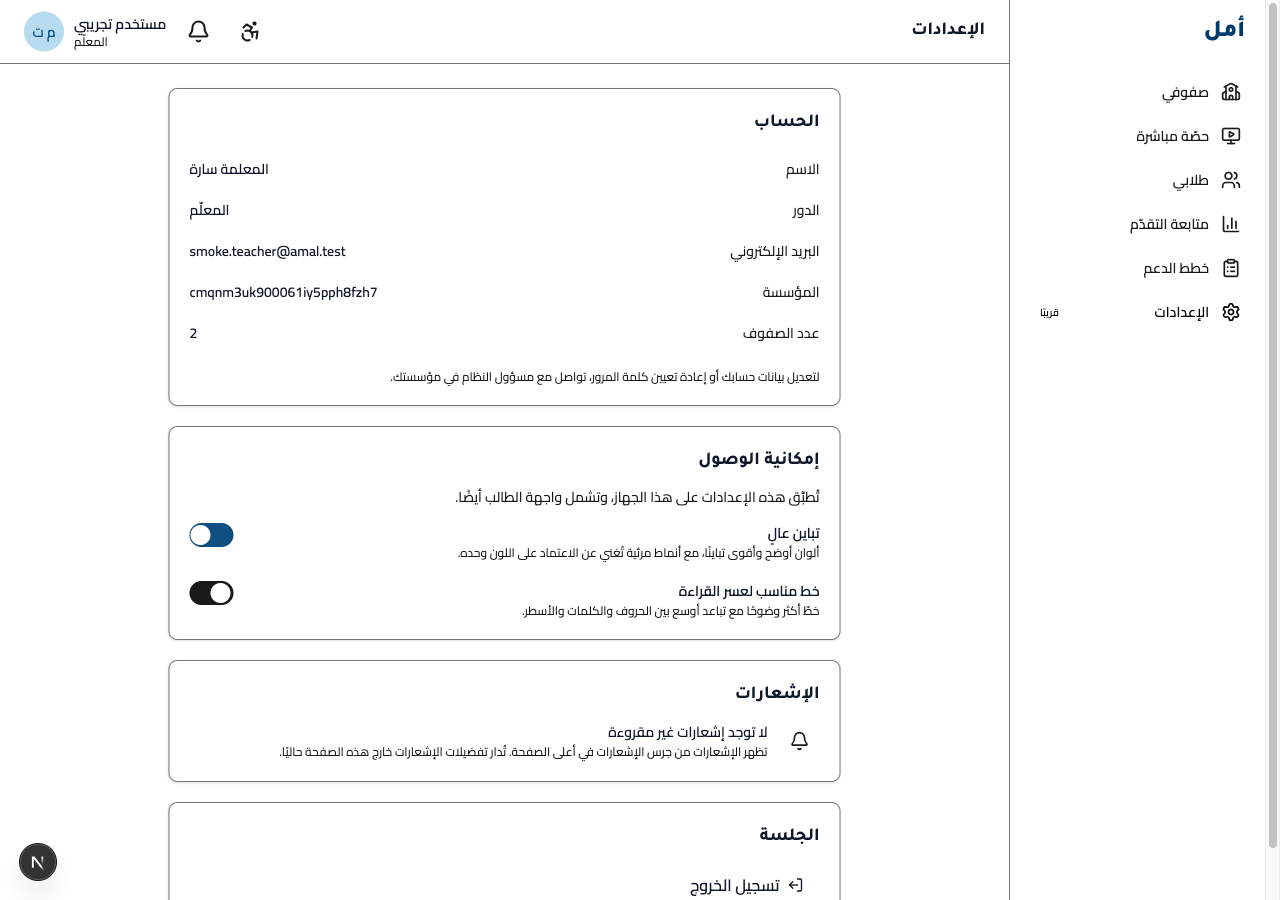
The settings screen holds your account, accessibility options, and sign-out. A high-contrast toggle is available for readability.
On phone and tablet
- On a wide screen the navigation rail sits on the right (right-to-left).
- On a tablet the rail collapses into a menu you open from the top bar.
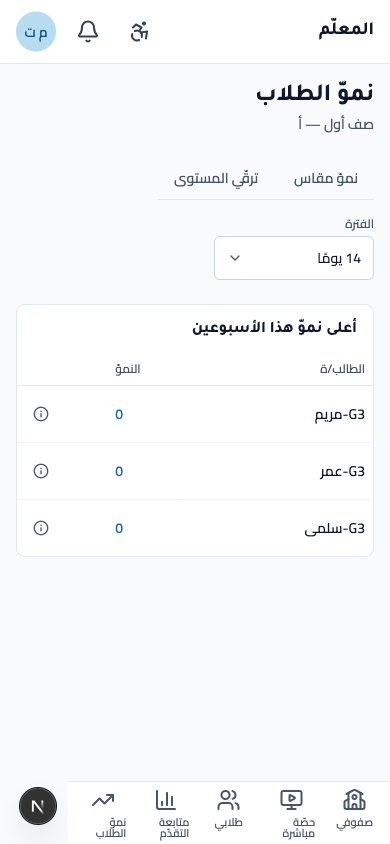
- On a phone you navigate from a fixed bottom tab bar; your most-used class and student screens are one tap away.
The class dashboard, student profile, activation wizard, and leaderboards all reflow cleanly from wide screen down to phone without horizontal scrolling.