Using the App — Student
Students practise, warm up, and answer diagnostics. The student experience is its own world: phone-first, audio-first, one big action at a time. Children never see scores, percentages, rankings, or any clinical label — only encouragement, stars, and the next thing to do.
The Student World
Everything a child does lives in Student World, a calm full-screen experience with large buttons and audio for instructions. For Grade 1 especially, the child can listen to the question instead of reading it. There is no sidebar and no menu to get lost in — the screen shows the one thing to do right now and a big button to do it.
The home screen shows one task only: «مهمتك الأولى» (the assessment), «مهمتك الثانية» (a deeper check the teacher assigns), «مهمتك اليوم» (the training, with its steps), or «مهمتك القادمة ستظهر قريبًا» when there is nothing to do now. «مهمتك اليوم» appears only while the teacher has opened training for the child (this lesson, today, or until a time she chose). It never appears on its own after the assessment, and not at home by default. If that time ends during training, the child finishes the question on screen and then sees «انتهى وقت التدريب الآن» and «أحسنت! نكمل في المرّة القادمة.», with no clock shown. A child who opens the training page when nothing is open reads «لا يوجد تدريب الآن» with a «الرئيسية» button back home. «تابع» replaces «ابدأ» once the task has started. Every sound the child hears is a human recording — never a machine voice; a text that has not been recorded yet simply shows no speaker icon.
The diagnostic and practice flows (and the short warm-up that precedes them) are part of the immersive Student World and are still being wired to live sign-in in this build. The screens below show the parts that are fully working today — joining a live class, the achievements wall, and the offline screen.
Warm-up
The warm-up (the thinking exercise) is the first step of every training: short, playful, non-linguistic, and it never affects a child’s measured results. It does not come before an assessment and it cannot be skipped — a training always starts with thinking. If it cannot load, a «تابع إلى المهمة» button keeps the child moving.
Diagnostic and practice
In the diagnostic, the child answers items one at a time; the app reads each question aloud when needed and remembers exactly where the child is, so a refresh, an app switch, or a locked screen restores the session at the right step. The assessment shows no timer, no back button and no sign of right or wrong.
Training is one day at a time: the thinking exercise, then exercises the system picks, with a thin step strip above every question (a ✓ means the exercise is finished, not that it was right). On each question:
- Right answer: a small mascot and a short word of praise, then the next question by itself.
- First wrong try: the same question stays, with «جرّب مرة أخرى» and a short hint — the child’s pick is never painted red.
- Second wrong try: only the correct answer is framed, calmly («الإجابة: …»), then the next question.
- Questions with several parts (drag each word to its meaning, fill several blanks): each part is judged on its own. After a first wrong try the parts that were right stay in place with a ✓ and only the others go back; after a second wrong try only the parts still wrong are shown in words («الإجابة: جمعة = يوم»).
When an exercise ends, a short «انتهى التمرين» screen appears, then the next exercise begins by itself.
Reading a passage in training: the text sits in its own column beside the questions (on a phone, above them), so the child can look back at it while answering. «A+» makes the text larger, and «استمع للقطعة» reads it aloud when a recording of the passage exists. The assessments never read a passage aloud: there the child reads it.
After the last exercise the app asks «كيف كان التدريب اليوم؟» with three faces (easy / just right / hard) — the answer is required and reaches the teacher — then a short celebration takes the child home. If the browser closes, the child comes back to the same question (or to «كيف كان التدريب؟» when the exercises are done).
The second task («مهمتك الثانية») is a longer check some children are given before training. It looks exactly like the first — nothing tells the child it is different. After a long reading passage (80 words or more) the child sees «استراحة قصيرة، ثم نكمل» with one button, «نكمل»; short questions run straight through. No praise, no score, nothing about what is left. The break is a save point: the child can leave there and come back later to the same break, then the next part. The card reads «ابدأ» until the first answer, then «تابع».
Before the very first task, the child tries one practice question on their own («جرّب بنفسك — أي صورة فيها شمس؟»). It is not recorded anywhere and appears only once.
Leaving the screen idle: after 10 minutes without a touch the app asks «هل لا زلت هنا؟». If nobody taps «نعم، أنا هنا» within 30 seconds, the app saves the work and signs the child out safely (a shared computer is not left open).
Stars and badges
A child earns one star for every training day they finish (the day is finished once they answer «كيف كان التدريب؟»), and badges for effort and consistency: the first training, 5, 10 and 20 finished trainings, and three training days in one week. The celebration shows «+١ ⭐» and the new badge by name; the stars and badges then sit in the header. They are the child’s own — never shown to classmates, never compared, and not part of any score or leaderboard. A first login shows neither.
The first time on a computer
The first time Amal is used on a computer, the child is asked «هل تسمع الصوت؟»: a big speaker button plays a short recorded sentence. «نعم، أسمع» moves on and the computer is never asked again (even after other children log in and out). «لا أسمع» asks the child to call the teacher and lets them try again. If the sentence has not been recorded yet, there is no check.
Join a live class
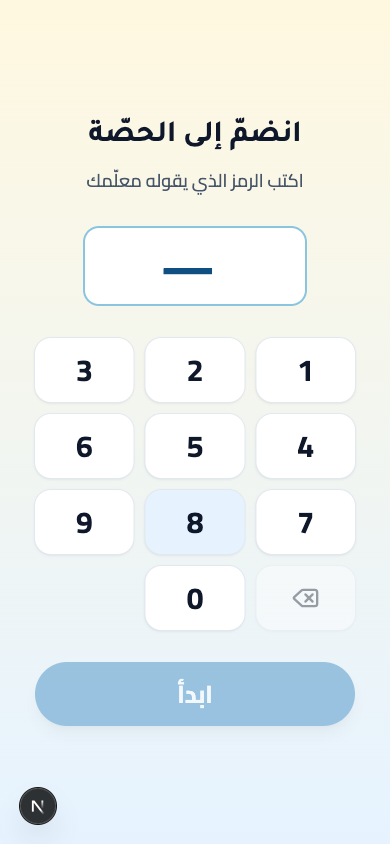
When the teacher starts a synchronous lesson, the child joins from the sync screen using the numeric code on the projector. A large keypad makes the code easy to enter on a phone.
How to:
- Read (or hear) the join code on the shared projector screen.
- Tap the digits on the keypad to enter the code.
- Tap start once the full code is entered (it stays disabled until then).
My achievements
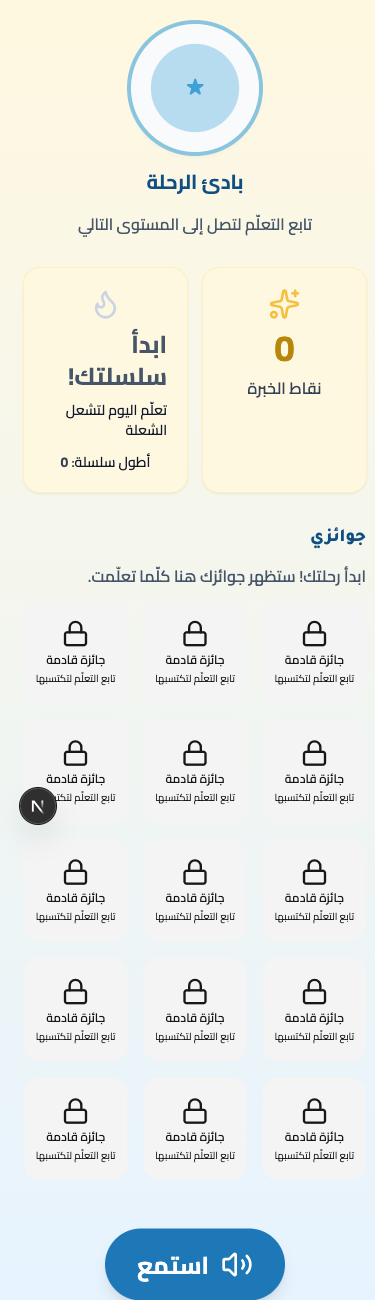
The achievements screen celebrates the child’s own journey — experience points, avatar tier, streak, and a wall of badges. Crucially, it shows only the child’s own progress: there is no rank, no peer comparison, and no score.
How to:
- See your experience points, your avatar tier, and your current streak.
- Browse the badge wall to see what you have earned.
When the connection drops
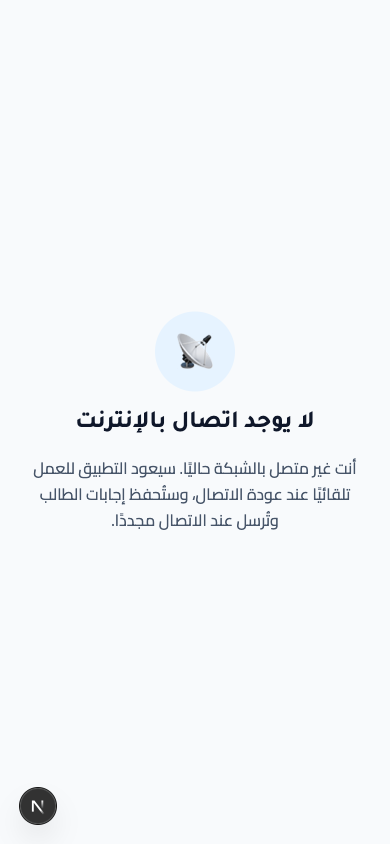
If the internet drops mid-session, the child sees a reassuring offline screen. Answers are saved on the device and sent automatically when the connection returns, so no work is lost.
On phone and tablet
Student World is phone-first: large pill buttons (72px tall), a full-cell join keypad, big avatars and badge tiles, and audio-first prompts so the youngest learners are never blocked by reading. Touch targets are comfortably large for small hands, and the layout is right-to-left at every size.
On larger tablets the student screens stay centred at a comfortable phone width rather than stretching edge-to-edge — a deliberate, calm, focused layout for young learners.